
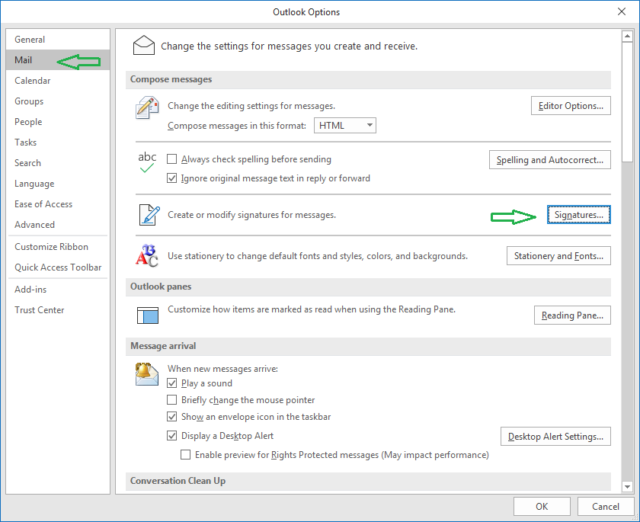
- In Outlook, select File menu then Options

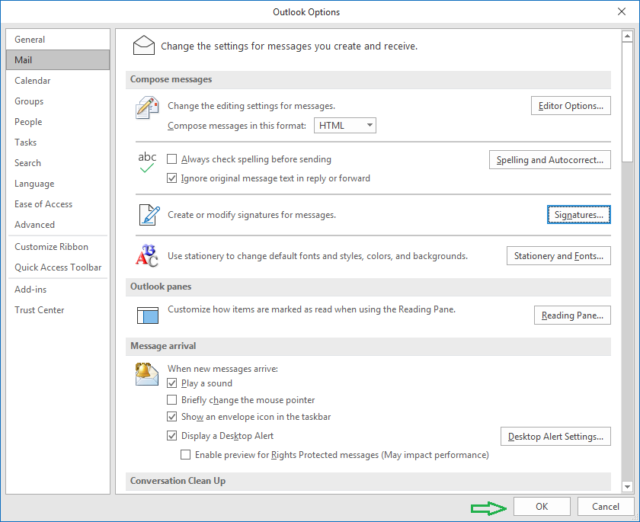
- Select Mail tab, then Signatures…
- In Signatures and Stationery window, select the signature to edit, in this example there is only one labeled “educo”
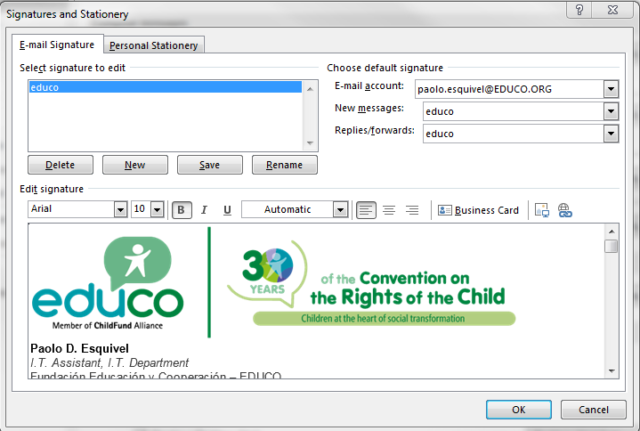
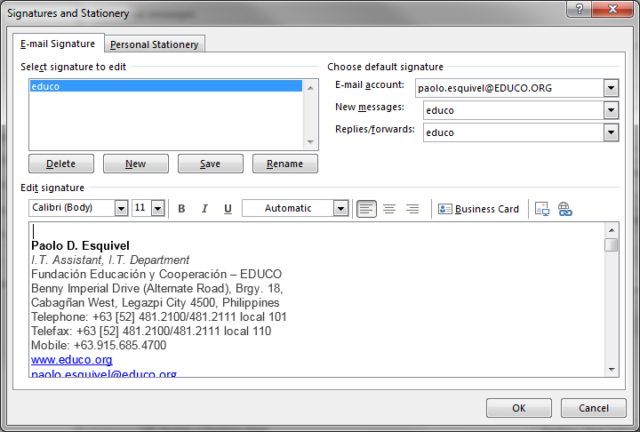
- In this case we will replace the logo. Click on the educo logo picture, then press Delete key to erase the logo, a cursor will appear just on top of your name.
- Next, press Ctrl-V to paste the new logo
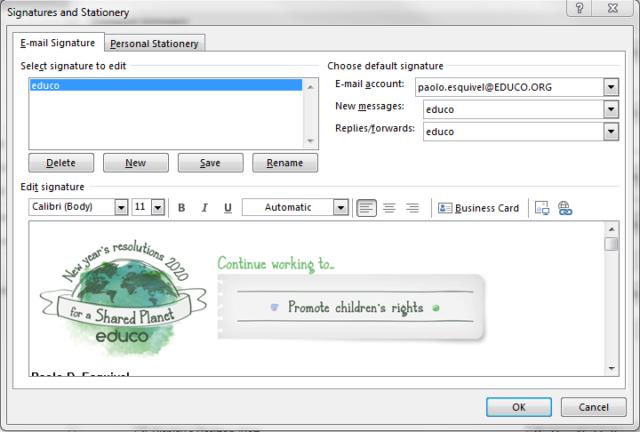
- Click Save, then click OK
- Click OK, to close Outlook Options window and save the changes.
- Done.